
Network printer sharing within Windows
Network printer sharing within Windows
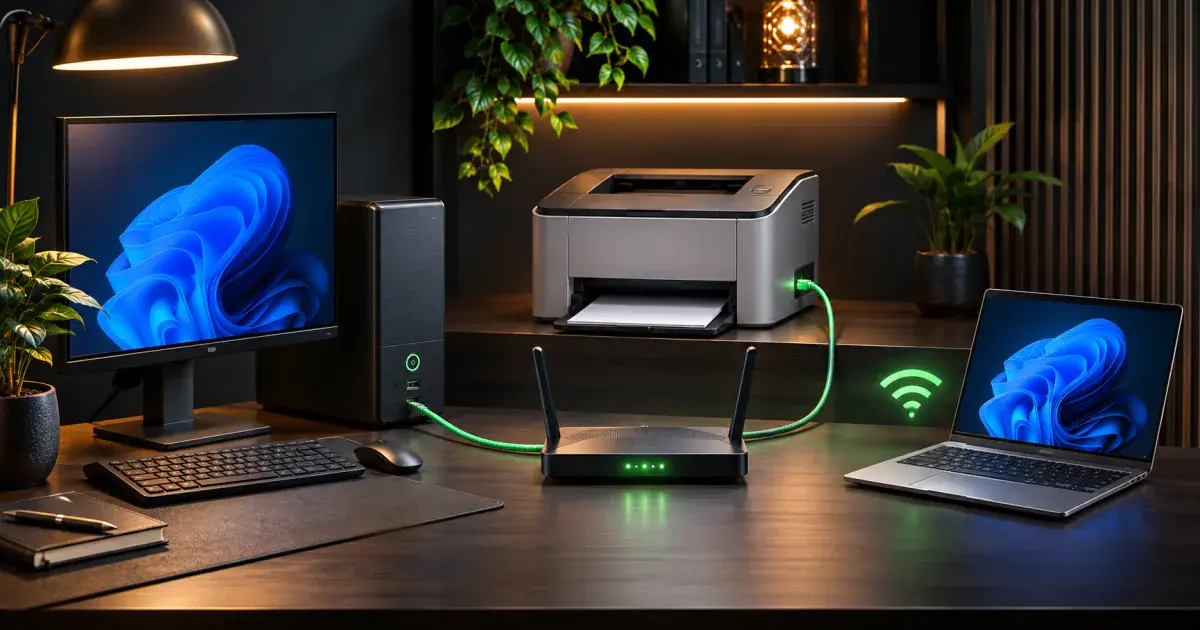
Multiple Windows computers can use one printer. The best method depends on the connection. A printer with Wi-Fi or network cable can access any device directly. A USB printer can be shared via one Windows computer, but that computer must remain available.
Direct connection is usually more stable and prevents one PC from becoming the central relay point. Windows sharing remains useful for a simple USB printer or temporary work environment. Choose the architecture first, and only then set sharing, permissions, and drivers.
What will you learn in this article?
- What is the difference between a real network printer and Windows printer sharing.
- Which settings are needed on the host computer.
- How other computers add the shared printer.
- How to keep availability, security, and drivers manageable.
Method one: send any device directly to the printer
If the printer has Wi-Fi or Ethernet, preferably give it a reserved IP address in the router. Add it to each computer via the manufacturer's software or a standard TCP/IP port. The computers then don't have to trust each other, and printing continues to work when one PC is off.
Check that all devices are in the same allowed network segment. A guest network often blocks local devices. Update firmware and printer drivers from official sources.
Method two: sharing a USB printer via Windows
Connect the printer to the computer hosting and locally check a test page. Then open the printer properties, the Share tab, and enable sharing of this printer. Enter a short share name without unclear characters.
The host computer must be on, awake, and remain connected. After a Windows restart, printing can only be available once the host has fully started. For intensive or business use, a direct network printer is therefore usually more suitable.
Set the network profile and share correctly
On a trusted home or corporate network, use the Private profile. Enable network discovery and file and printer sharing for that profile. Do not do this without assessment on a public network, as other devices there are not automatically trusted.
Windows Firewall usually creates the correct rules when sharing is enabled. Do not add broad exceptions and do not disable the firewall completely to bypass a printer issue.
Add the shared printer to a second computer
In File Explorer, open the host via two backslashes followed by the computer name and select the shared printer, or add it via Settings. Windows may prompt for valid credentials and install an appropriate driver.
If the computer name does not work, check network detection, name resolution, and reachability. Do not use anonymous access as an easy solution. In a managed environment, accounts and permissions are part of the security policy.
Drivers and different Windows versions
The host and client may use a different architecture or driver version. Modern package drivers are usually downloaded automatically, but older printer models can cause issues. Install only signed drivers from Windows Update or the manufacturer.
When an update breaks printing, note the error code and versions. Do not remove all printers and drivers at once; other queues may use the same driver.
Make the solution reliable
Give the host a recognizable computer name and prevent deep sleep when others need to be able to print. Keep track of printer and Windows updates and test from at least two computers. Record the share name and chosen method.
When the host is often offline, many users are printing, or security boundaries are important, choose a printer with its own network interface or a managed print solution. This reduces dependency and makes failures easier to isolate.
Frequently Asked Questions
Should the host computer be turned on with a shared USB printer?
Yes. The host receives and processes the command; the printer is unavailable when switched off or asleep.
Is Wi-Fi on the printer the same as Windows sharing?
No. Computers usually connect directly to printer Wi-Fi; with Windows sharing, every command runs through the host PC.
Can I share a printer on a public network?
That is not recommended. Use sharing only within a trusted, well-secured network profile.
Why does Windows ask for a username and password?
The host secures shared resources with Windows accounts. Use valid account credentials instead of disabling security.
Related articles
Set up printer sharing properly and securely?
Viva Support helps you choose the best connection method and organizes the printer, Windows, and network clearly.