Connecting a network drive in Windows
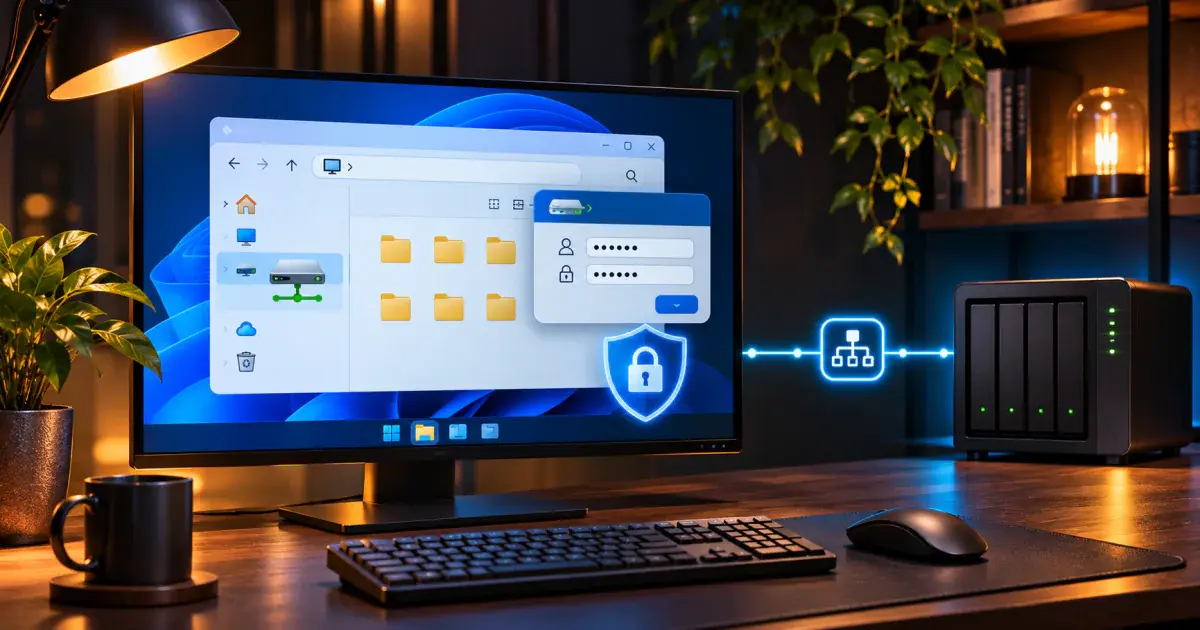
Connecting a network drive in Windows
A linked network drive assigns a fixed drive letter to a shared folder in File Explorer. The folder remains on the NAS, server, or other computer; speed and availability therefore depend on the network and the target device.
Use this method only on a trusted local network or over a secure business connection. Do not open SMB directly to the internet and do not store shared administrator passwords on multiple computers.
What will you learn in this article?
- What information you need before pairing.
- How to add a network folder as a drive.
- How to use usernames and permissions correctly.
- How to fix common errors in a targeted way.
Check path and accessibility
Request the server name and share name, for example double backslash server backslash folder. Test this path first in File Explorer's address bar. Check that the server or NAS is turned on and that you are on the same network or the correct VPN.
Preferably use a stable name instead of a changing IP address. A DHCP reservation and good name resolution prevent later outages.
Link a station letter
Open This PC, choose More and Create Network Connection. Select a free drive letter and fill in the full network path. Choose Reconnect on sign-in only for a resource that is normally available.
Use Connect with other credentials when your Windows account is not the same as the server account.
Accounts and saved credentials
Sign in with your own account and minimum permissions. Do not use anonymous access and do not share passwords among employees. Windows Credential Manager can retain old data; remove only the specific outdated entry.
An error involving multiple connections with different usernames first prompts all connections to the same server to close with check.
Common malfunctions
Niet gevonden wijst vaak op naam, netwerk, firewall of offline server. Toegang geweigerd wijst vaker op account- of maprechten. Een rood kruis na opstarten kan verdwijnen zodra netwerk en server beschikbaar zijn.
Schakel geen verouderde SMB-versie in zonder noodzaak. Update oudere NAS-apparatuur of vervang een onveilig protocol.
Veilig gebruik en back-up
Een stationsletter verandert een gedeelde map niet in lokale opslag. Offline gebruik vereist een bewust synchronisatieplan. Verwijderingen en ransomware kunnen direct de gedeelde gegevens raken.
Zorg voor snapshots en een onafhankelijke back-up die getest wordt. Voor complexe server-, VPN- of rechtenproblemen maakt ViVa Support vooraf een vaste offerte.
Frequently Asked Questions
Waarom staat er een rood kruis bij de netwerkschijf?
Windows heeft bij aanmelden nog geen verbinding gemaakt. Open het station wanneer netwerk en server beschikbaar zijn.
Welke gebruikersnaam moet ik invullen?
Het account van de NAS, server of het domein dat rechten op de map heeft, niet automatisch uw e-mailadres.
Kan ik de map buitenshuis openen?
Alleen via een veilige VPN of beheerde oplossing; zet SMB nooit rechtstreeks open naar internet.
Waarom krijg ik toegang geweigerd?
Controleer zowel deelrechten als bestandsrechten en verwijder eventueel alleen de verkeerde opgeslagen referentie.
Related articles
Netwerkschijf betrouwbaar laten koppelen?
ViVa Support controleert pad, netwerk, accounts en rechten als één geheel. Complex netwerkwerk wordt vooraf als vaste offerte afgesproken.